







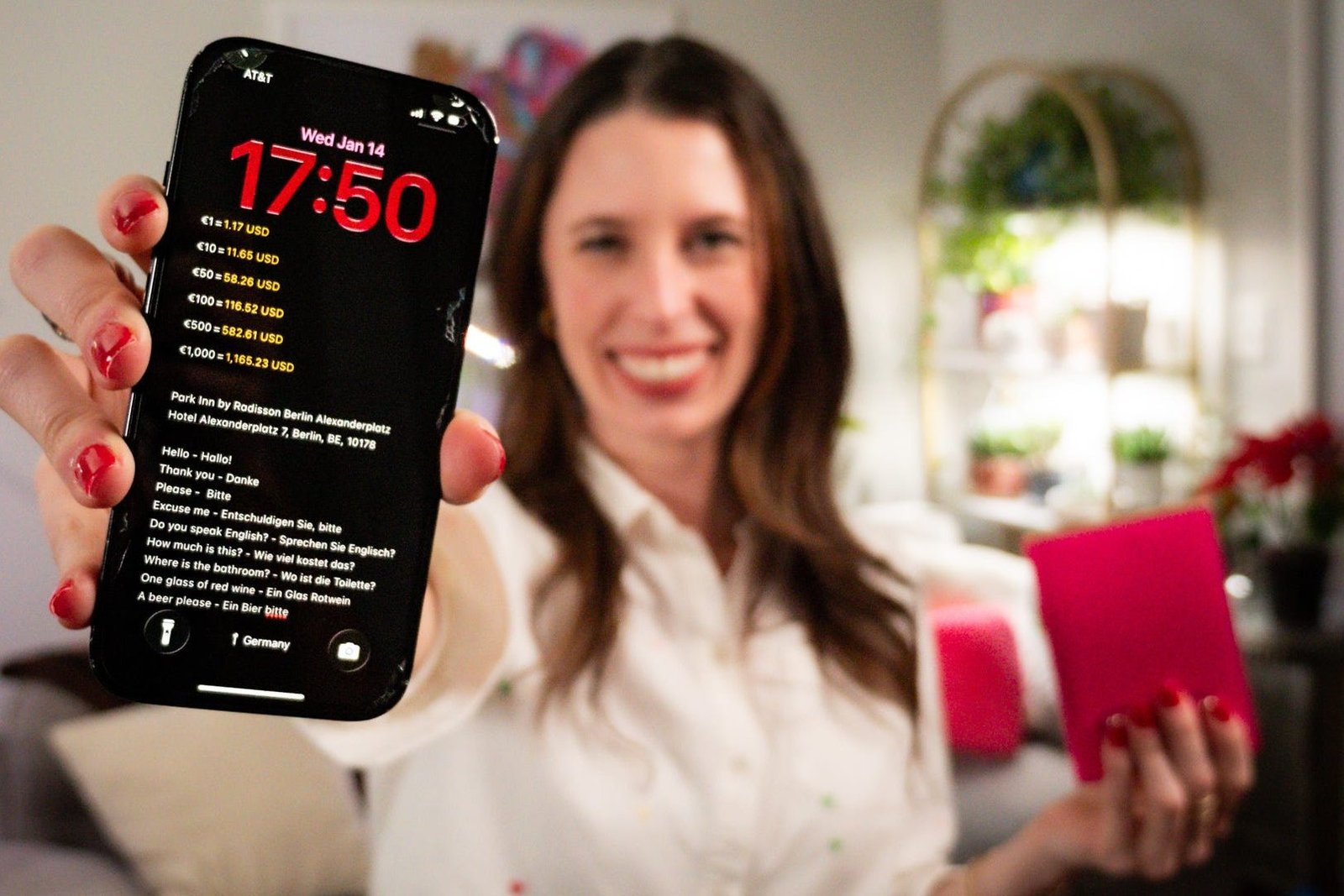


Traveling to a new place is an adventure, especially if there’s a different language and currency involved. We no longer need to pack travel dictionaries or folded-up maps, since our phones can translate spoken and written words in seconds, and navigate us around town, even without an internet connection. Even converting currency can be done instantly using your iPhone’s calculator or Notes app.
Those methods are useful, but you can also expedite some of the process by making a handy little cheat sheet.
International Travel Hack
You can make your cheat sheet on a piece of paper or somewhere in your phone — it’s up to you.
Simply write down the information you expect to need to reference often, for example:
- The name and address of your hotel.
- Frequently used greetings, phrases or questions, like: “Where is the bathroom?” “How much is this?” and “Thank you.”
- Incremental currency conversions, like the value of $10, $50 or $100 in the local currency. This will give you a quick frame of reference when you’re looking at local prices.
- Contact information if the device is lost or stolen, written in English and the local language.
Once you have the sheet made, take a picture or screenshot and turn it into your phone’s lock screen. You can fit it all on one screen, or split it between multiple screens you can tap through. It can be tricky to get the positioning of the cheat sheet right so you can easily see everything on your lock screen, so I recommend doing this before you leave.
This cheat sheet makes it very convenient to quickly reference, without having to worry about finding the right app or having an internet connection. You may even want to turn it into a custom Focus so you can toggle it on or off as you need.
How to Customize Lock Screen
If you want to make your cheat sheet your lock screen, it’s simple. To create a custom lock screen on your iPhone:
- Go to Settings and tap Wallpaper.
- Tap Add New Wallpaper.
- If it’s all in one photo, tap Photos and select the picture.
- If you want multiple photos, tap Featured under the Photo Shuffle section. Tap Select Photos Manually and find the photos in your camera roll.
- Adjust the image(s) as you need to so it all fits on the screen.
- Add any additional widgets you want.
- Tap Add.
This article originally appeared on USA TODAY: Your next trip abroad needs a cheat sheet. Here’s what to include.
Reporting by Cody Godwin, USA TODAY / USA TODAY
USA TODAY Network via Reuters Connect
Read the full article here